Your first simulation, step by step
By Scrumagic Team Last reviewed 5 min read
In short
A first Scrumagic run takes you from choosing a project and a role to your first decision at a gate. You meet your team, open the first phase, read the inputs, watch the ceremony and decide. Then you stop, because the next step opens tomorrow. Here is what each screen shows and what to do on it.
The first run is the one that decides whether you come back, so it's worth knowing what to expect. This walks through the first session as a Scrum Master on the Tutor Booking scenario, from the first click to the point where the simulation tells you to come back tomorrow.
1. Choose a project
After you have an account, you launch a simulation in two steps. The first is the scenario, a fictional business with its own deadline and people. The card tells you the difficulty, which roles are playable, what you'll learn, which skills you'll practise, and who it's best for.
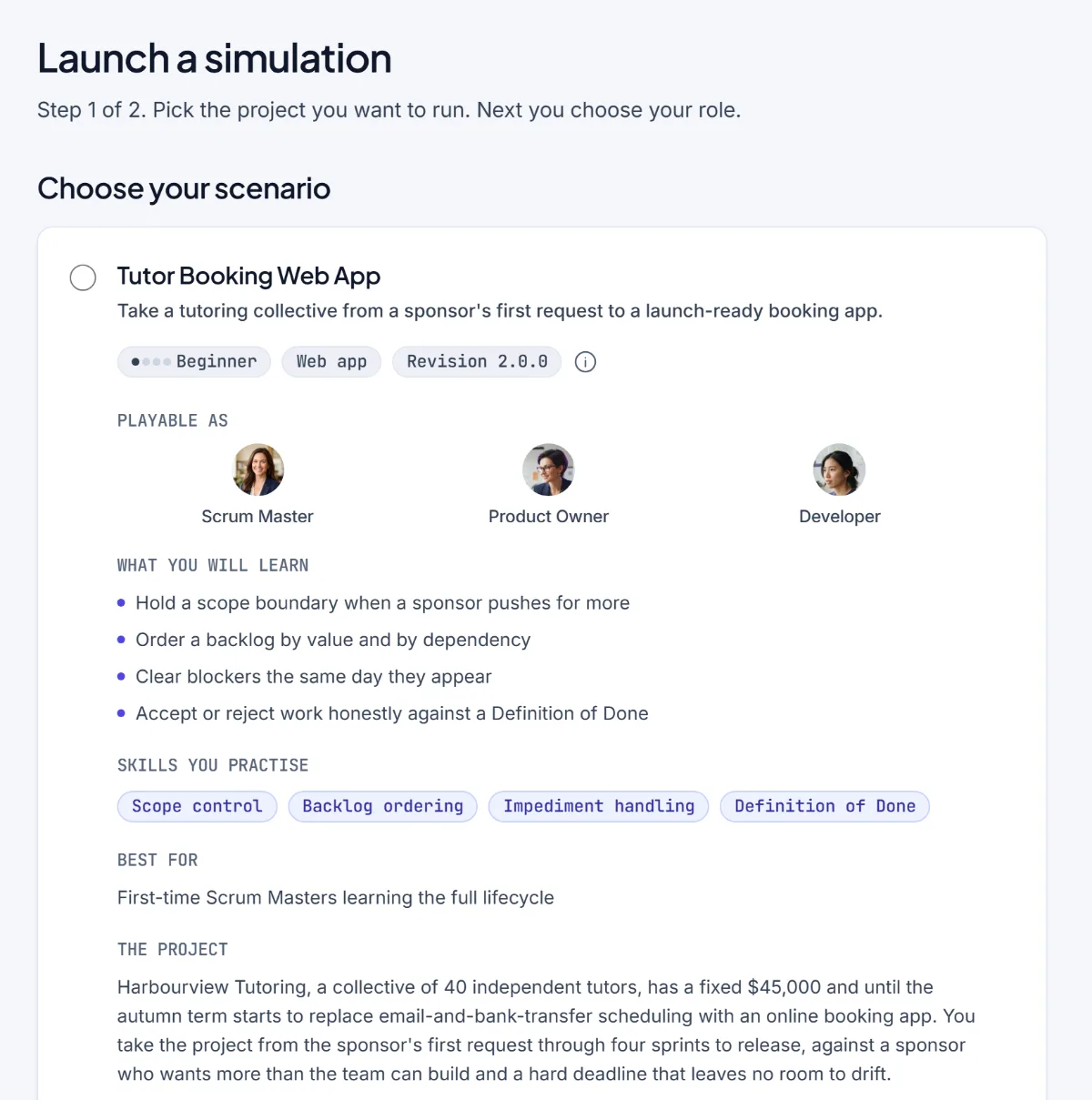
If it's your first time, take the beginner scenario. The full set is described here.
2. Choose a role
The second step is your role: Scrum Master, Product Owner or Developer. You stay in it for the whole run. We'd suggest the Scrum Master on a first run, and this post explains why and what the others ask of you.
3. Meet your team
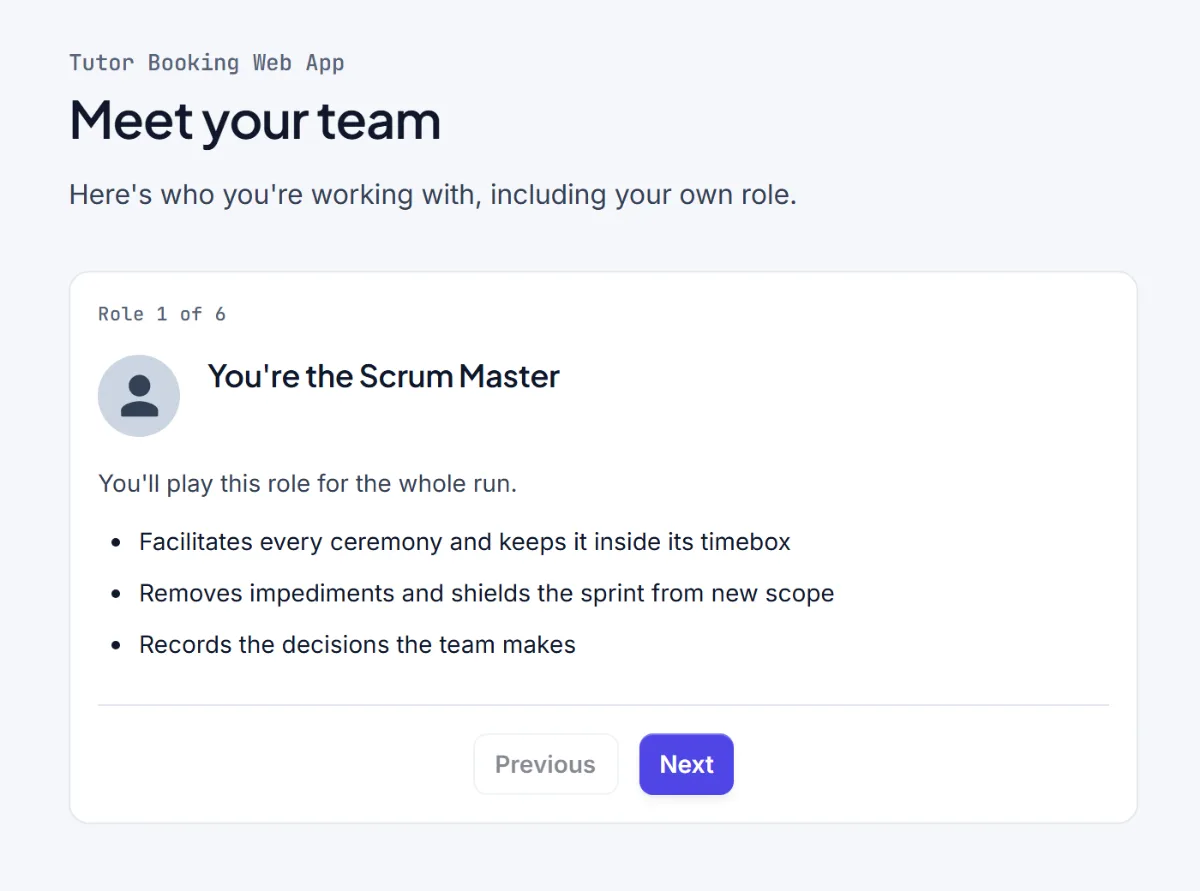
Before anything happens, the simulation introduces every role on the team, including yours. For the Scrum Master it says, for instance, that you facilitate every ceremony and keep it inside its timebox, remove impediments and shield the sprint from new scope, and record the decisions the team makes. There's a "don't show this again" option if you play again.
4. Open the first phase
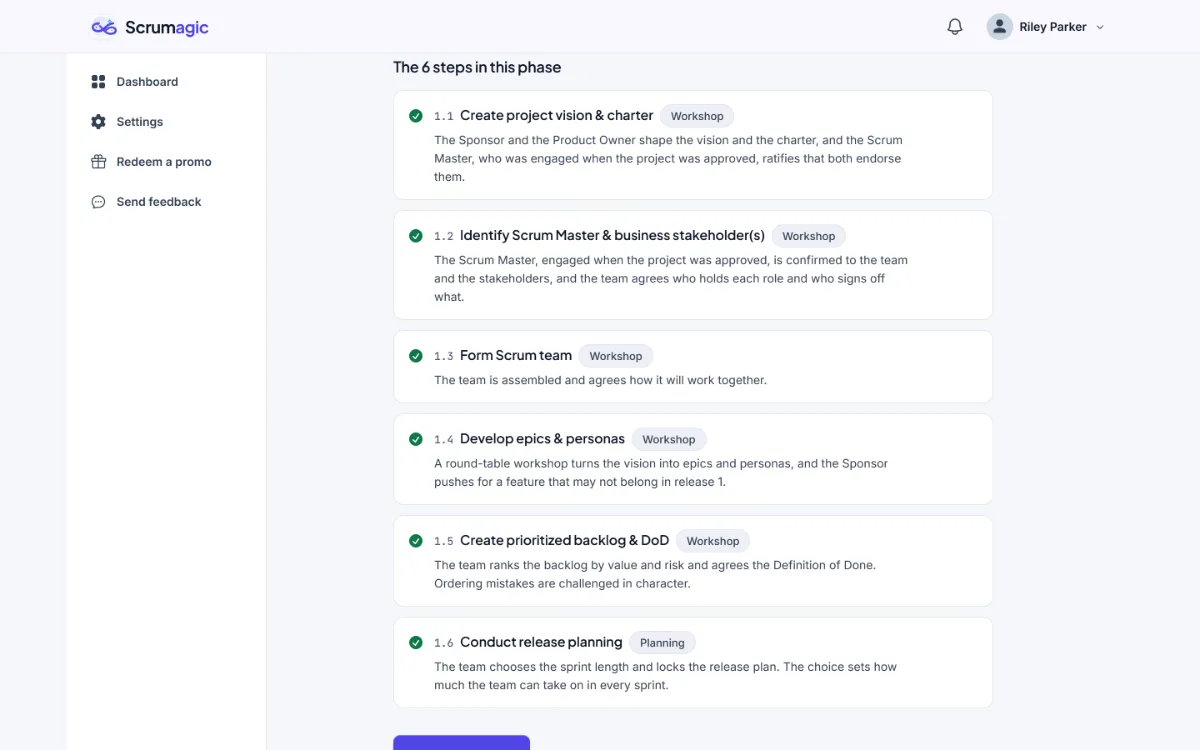
Each phase opens with an overview. Phase 1 is called Initiate, and its six steps are listed with a line on what each does: agreeing the vision and charter, confirming roles, forming the team, developing epics and personas, ranking the backlog with a Definition of Done, and planning the release. Only the first step is open. The others unlock one at a time.
5. Read the inputs
Every step starts with the material the team has in front of it. In step 1.1, that's a business case, a market study, the company's vision, and the funding limits. You don't have to read everything in full, but the discussion that follows refers to it, and a decision made without reading is usually a worse one.
6. Watch the ceremony
The ceremony is a conversation between the team members, who speak in turn as their roles would. Yours appear as well, as the facilitator opening the meeting. You can step through it one message at a time, or skip ahead to the decision. There's a note on the screen that times in the conversation follow the scenario's calendar, not yours.
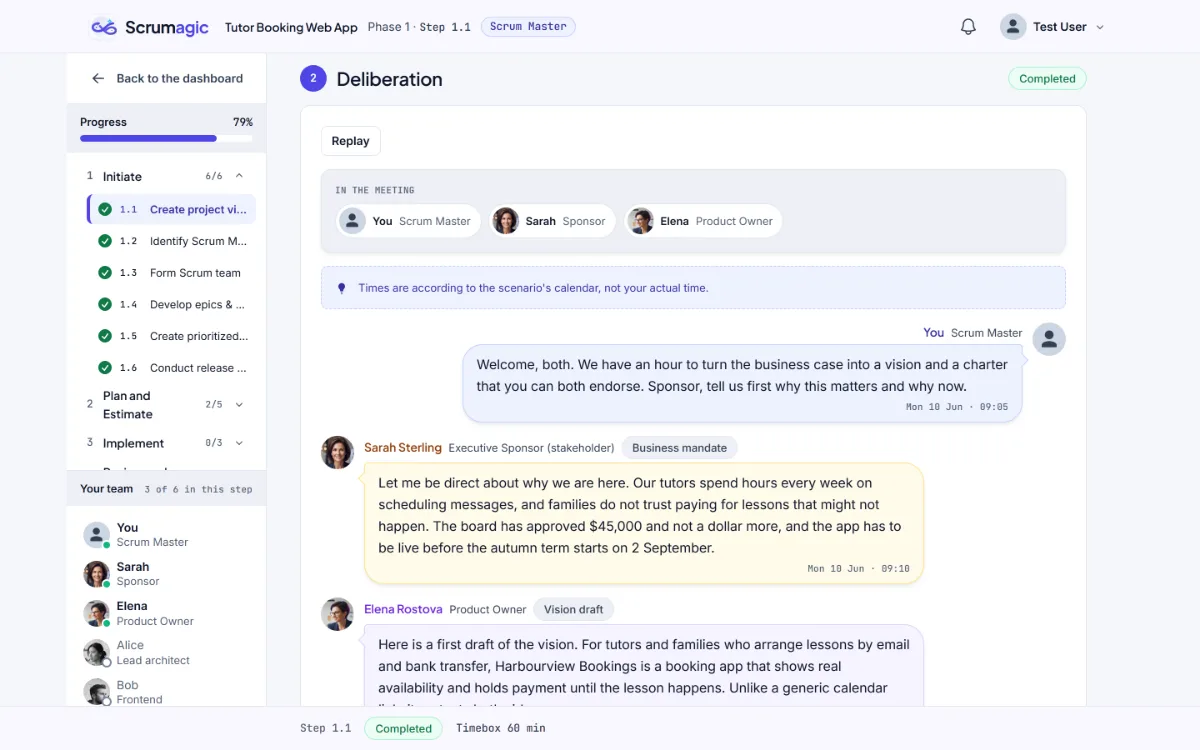
It is worth reading properly at least once. The positions people take here are the evidence you'll use when you decide.
7. Decide
At the end of the conversation, a decision opens. In step 1.1 you're asked whether both the Product Owner and the Sponsor endorse the vision and the charter. You choose from a short list of options, each with a line on what it means. There's also a box where you can ask the team a question first, up to a small limit, which doesn't decide anything but gets you more information.
Some decisions can't be undone, and the screen tells you before you confirm. Take your time. The simulation is not timed in real life, and nothing is lost by thinking.
8. See what the step produced
Once you confirm, the step records your decision and produces its outputs. For step 1.1 these are a vision statement and a project charter, both marked as ratified by you.
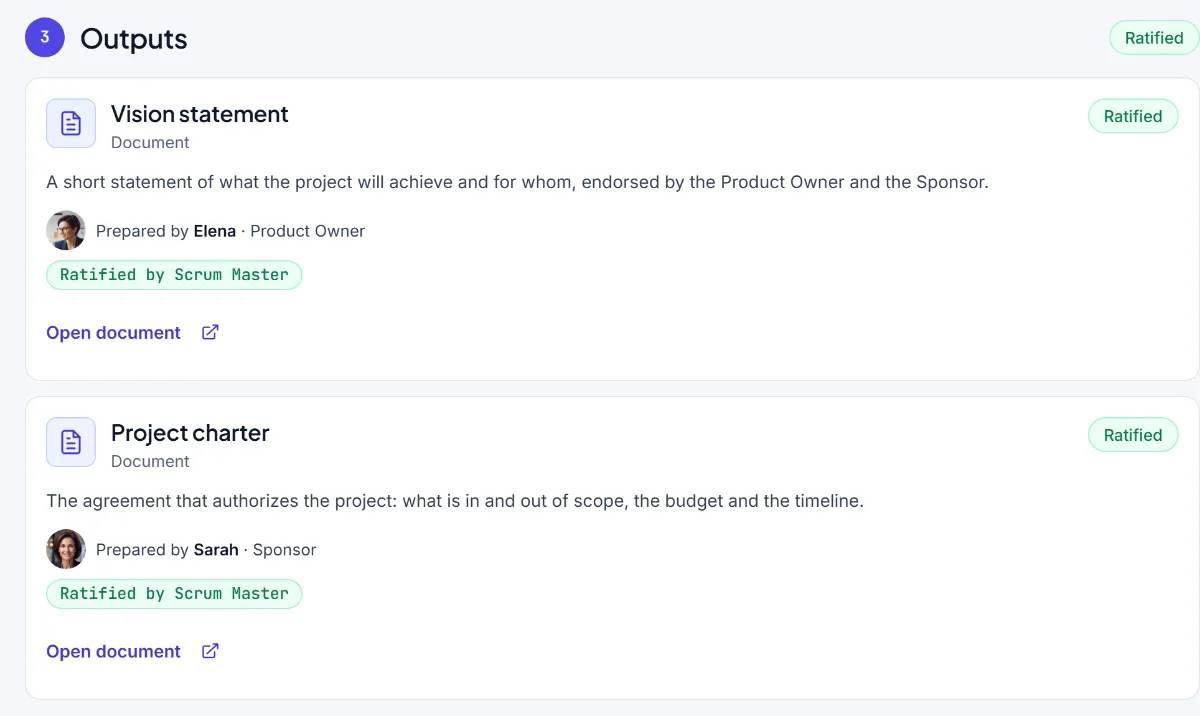
These aren't there for show. The charter's scope, budget and timeline are what later steps refer to, so the next time they matter, you'll be able to open the document and see what was agreed.
9. Then you stop
A step opens the day after the previous one. After you finish, the simulation tells you that today's work is done, and the next step unlocks at midnight in your own time zone. It might feel slow at first. It's deliberate: real teams live with their decisions overnight, and the spacing gives you time to think before the consequences arrive.
You'll get a notice when the next step is ready, and you can turn those emails off if you prefer.
A few things worth knowing
- You can leave and resume. Closing the page doesn't lose anything.
- The first phase is free. Phase 1 is the first six steps, up to the release plan. The pricing page says what the rest of a run needs.
- Read the team's disagreements. The AI teammates are not decorative. They are the evidence for your decision.
- Decide for reasons you can state. The point is to understand why you chose, not to find the answer someone wants. The scorecard follows the decisions you recorded.
What to read alongside
If you're new to the framework, what is Scrum gives you the vocabulary in a page. To see what the free plan covers before you start, the free Scrum simulator post lists it. The steps you'll hit first are the vision and charter, the roles, and the team, and the one that surprises people most is the backlog step, where the Definition of Done first appears.
Nothing opened? This computer may have no email program set up. Write it in Gmail or use the copy button and paste the link into your email.